
Best Free PDF Tools Online: 32 Active Tools With No Daily Quotas
PDFs are everywhere — invoices, contracts, resumes, reports, presentations. If you work with documents at all, you handle PDFs regularly. And at some point, you need to do more than just read them.
PDFGem offers 32 active PDF tools for merging, converting, signing, compressing, and protecting documents. The selected document is processed in the browser and is not uploaded for processing. There is no daily quota, but each operation still depends on the tool, document complexity, browser, and available device memory. Analytics and error monitoring may receive technical telemetry, not document content.
What to Look for in Free PDF Tools
Not all free PDF tools use the word "free" in the same way. Daily quotas, paid-only features, and account requirements vary by provider and plan, so check the current terms before choosing a service. Here is what genuinely matters:
- No daily meter — PDFGem does not count operations across the day. A single job is not unlimited: accepted size, file count, document complexity, and memory use vary by tool.
- No forced account — If you need to create an account just to merge two PDFs, the tool is optimizing for its business, not for you.
- Privacy by design — In the 32 active file tools, the selected document is processed in your browser and is not uploaded for the operation. Separate technical network requests may still occur.
- No watermarks — Some tools stamp their logo on your output unless you pay. That defeats the purpose of a free tool.
- Speed — Local processing avoids upload and download time, though large files still depend on your device's memory and processor.
PDFGem's 32 Active Tools by Category
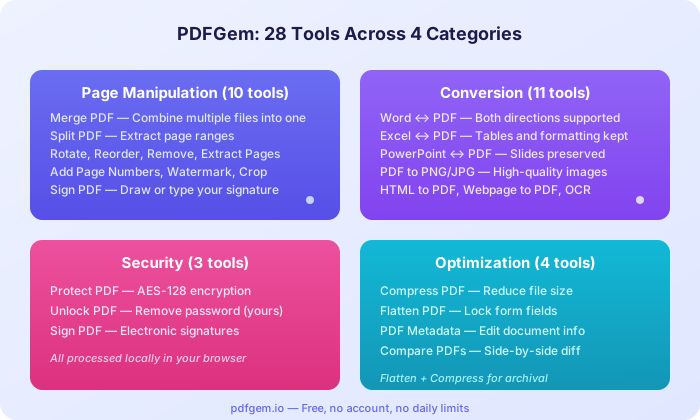
Page Manipulation and Editing (16 tools)
These tools let you reorganize PDF pages without opening a desktop editor:
- Merge PDF — Combine multiple PDFs into a single file. Drag to reorder before merging.
- Split PDF — Extract specific page ranges or split a document into individual pages.
- Rotate PDF — Fix sideways or upside-down pages. Rotate individual pages or the entire document.
- Reorder Pages — Drag pages into the exact sequence you need.
- Remove Pages — Delete unwanted pages (blank pages, cover sheets you do not need).
- Extract Pages — Pull specific pages out of a larger document.
- Add Page Numbers — Choose position, format, and starting number.
- Add Watermark — Adds the same text near the center of every page, horizontally or at 45°, with controls for opacity, font size, and color. Position is not freely draggable. The built-in Helvetica font has limited Unicode coverage, so preview non-Latin characters before relying on them.
- Sign PDF — Draw or upload a signature image and place one visible mark on a page. This is not a certificate-based digital signature.
- Crop PDF — Trim page margins to remove whitespace or resize for printing.
- Flatten PDF — Embed the current appearance of supported AcroForm fields. Annotations and certificate signatures are not processed.
- PDF Metadata — View and edit title, author, and document properties.
- Redact PDF — Permanently cover sensitive regions before sharing.
- PDF Reader — Read a PDF in a focused browser interface.
- Fill PDF — Complete supported form fields locally.
- Edit PDF — This tool adds new text and images on top of your PDF.
Conversion and Extraction (12 tools)
Move between PDF and other formats in both directions:
- PDF to Word — Extracts embedded text, headings inferred from font size, and page breaks into an editable DOCX. Columns, tables, images, and complex layouts may require manual repair.
- Word to PDF — Convert DOCX to a rasterized A4 PDF in your browser. Basic text, lists, tables, and inline images work best; complex Word layout may change.
- PDF to Excel — Infers rows and columns from positioned PDF text and writes an editable XLSX. Merged cells, wrapped text, images, and complex tables may require manual repair.
- Excel to PDF — Convert one XLSX, XLS, or CSV worksheet at a time to a rasterized PDF. Cell values and a basic grid render; Excel print settings and charts do not.
- PDF to PowerPoint — Renders each PDF page as an image on its own PowerPoint slide. The slide image is not independently editable, and rendering can vary by PDF.
- PowerPoint to PDF — Convert supported PPTX text and pictures to rasterized PDF pages. Charts, SmartArt, groups, backgrounds, themes, media, and fonts may be omitted.
- PDF to PNG — Render each PDF page as a PNG at 1x, 2x, or 3x scale in your browser. This tool does not export JPG.
- PDF to Text — Extract embedded, selectable text from PDF pages in your browser. Output order depends on the PDF structure, and scanned pages require OCR.
- OCR PDF — Got a scanned document where you cannot select or search the text? OCR recognizes the page and lets you copy or download the extracted text as TXT. It does not add a searchable layer to the PDF. Supports 16 languages.
- Extract Images — Find compatible raster images in a PDF and re-export decoded pixels as new PNG files in your browser.
- HTML to PDF — Convert sanitized HTML to a rasterized A4 PDF in your browser. Basic CSS is supported; scripts, forms, and iframes are removed.
- JPG to PDF — Combine JPG, PNG, GIF, or WebP images into one PDF in your browser. Total input is limited to 100 MB; GIF and WebP are converted to JPEG.
Security (2 tools)
- Protect PDF — Add AES-128 encryption with a password. Done entirely in your browser.
- Unlock PDF — Remove password protection from a PDF you own (you need to enter the password).
Optimization and Review (2 tools)
- Compress PDF — Create an image-based PDF locally by rendering each page as JPEG. The process is lossy, removes document features, and may not reduce file size.
- Compare PDFs — Compare two PDFs as rendered page images with side-by-side, overlay and pixel-difference views. This visual check does not compare text or file structure.
The 6 Most Useful PDF Tools (and When You Need Them)
If you are new to PDFGem, these are the tools most people reach for first:
- Merge PDF — Assembling application packets, combining scanned pages, or creating a single report from multiple source files. Used by students, accountants, lawyers, and anyone who emails multi-page documents.
- Compress PDF — PDFGem renders each page locally, encodes it as JPEG, and builds a new image-based PDF. This can help in some cases, but it is lossy, removes interactive and semantic features, and does not guarantee a smaller file.
- Sign PDF — Adding a visible signature mark without printing and scanning. Draw it with a mouse or finger, or upload a signature image. Confirm whether your recipient requires a certificate-based signature instead.
- PDF to Word — Extracts embedded text, headings inferred from font size, and page breaks into an editable DOCX. Columns, tables, images, and complex layouts may require manual repair.
- OCR PDF — Got a scanned document where you cannot select or search the text? OCR recognizes the page and lets you copy or download the extracted text as TXT. It does not add a searchable layer to the PDF. Supports 16 languages.
- Protect PDF — Before emailing sensitive documents (financial statements, medical records, legal contracts), add a password. The encryption happens locally — neither the file nor the password touches a server.
Privacy: Local Processing by Default
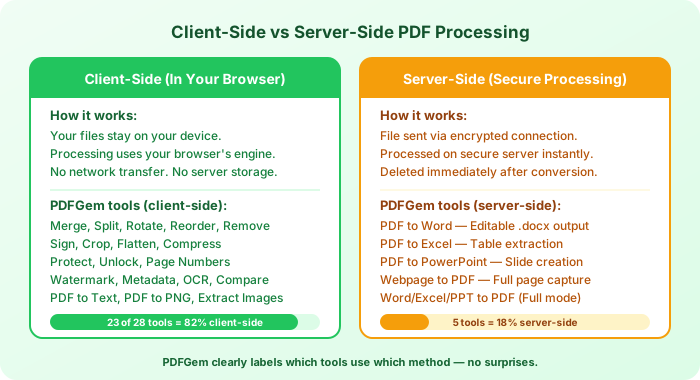
Privacy is not a marketing checkbox — it is an architectural decision. All 32 active PDFGem tools process files in your browser. Your files are read by code running in the browser tab, processed in your device's memory, and downloaded directly. File contents do not cross the network. Analytics and Sentry may receive technical telemetry about page use or errors, but not the contents of the selected document.
Webpage to PDF is the one route that still needs a remote browser, so it is marked unavailable, excluded from the index, and not counted among the 32 active tools. To save a webpage now, use the browser's Print and Save as PDF command.
What Makes a Genuinely Free PDF Tool
The word "free" gets stretched a lot online. A service that allows an initial operation and then requires a subscription is functioning as a trial, whatever the button says. Here is how PDFGem approaches it differently:
- No hidden tiers — Every tool works the same way whether it is your first use or your thousandth.
- No account required — Open the tool, use it, and close the tab without providing an email. PDFGem does not upload or retain the document you process.
- No watermarks — The output file is clean. No logos, no "created with" banners.
- No daily quota — The site does not count operations across the day. Per-operation file-size and file-count limits still vary by tool and by available device memory.
- Sustained by donations — PDFGem stays free through voluntary contributions from users who find it useful. If the tools save you time, consider supporting the project.
Quick Reference: All 32 Active Tools
| Category | Tool | Processing |
|---|---|---|
| Page | Merge PDF | Browser |
| Page | Split PDF | Browser |
| Page | Rotate PDF | Browser |
| Page | Reorder Pages | Browser |
| Page | Remove Pages | Browser |
| Page | Extract Pages | Browser |
| Page | Add Page Numbers | Browser |
| Page | Add Watermark | Browser |
| Page | Sign PDF | Browser |
| Page | Crop PDF | Browser |
| Convert | PDF to Word | Browser |
| Convert | Word to PDF | Browser |
| Convert | PDF to Excel | Browser |
| Convert | Excel to PDF | Browser |
| Convert | PDF to PowerPoint | Browser |
| Convert | PowerPoint to PDF | Browser |
| Convert | PDF to PNG | Browser |
| Convert | PDF to Text | Browser |
| Convert | OCR PDF | Browser |
| Convert | Extract Images | Browser |
| Convert | HTML to PDF | Browser |
| Convert | JPG to PDF | Browser |
| Security | Protect PDF | Browser |
| Security | Unlock PDF | Browser |
| Optimize | Compress PDF | Browser |
| Optimize | Flatten PDF | Browser |
| Optimize | PDF Metadata | Browser |
| Optimize | Compare PDFs | Browser |
| Edit | Redact PDF | Browser |
| Edit | PDF Reader | Browser |
| Edit | Fill PDF | Browser |
| Edit | Edit PDF | Browser |
Tips for Choosing the Right Tool
- Need to combine files? Start with Merge PDF. If pages are in the wrong order, use Reorder Pages first.
- Compress PDF — Create an image-based PDF locally by rendering each page as JPEG. The process is lossy, removes document features, and may not reduce file size. There is no fixed reduction. Results depend on the source pages and selected render level. An already optimized PDF can become larger, so compare the output with the original.
- PDF to Word → Word to PDF — Extracts embedded text, headings inferred from font size, and page breaks into an editable DOCX. Columns, tables, images, and complex layouts may require manual repair.
- Scanned document with no selectable text? Use OCR PDF to recognize the page and download or copy the extracted text. The tool does not add a searchable text layer to the source PDF.
- Sending sensitive documents? Use Protect PDF to add a password before emailing. Share the password through a separate channel (text message, phone call).
- Finalizing supported form fields? Flatten PDF can embed their current appearance and remove those interactive fields. It does not flatten annotations or make the document tamper-proof.
Choose any of the 32 active PDFGem tools and start without signing up or spending a daily allowance. Check the selected tool page for per-operation constraints, then inspect the result before sharing it.
Frequently Asked Questions
Are PDFGem tools free without daily quotas?
Yes. All 32 active tools are free to use without an account, paid tier, daily operation counter, or PDFGem watermark on the output. Individual tools still have per-operation file-size or file-count constraints, and demanding documents are limited by browser and device memory.
Do my files get uploaded to a server?
In the 32 active file tools, the selected document is processed in your browser and is not uploaded for the operation. Separate technical network requests may still occur.
What is the maximum file size PDFGem supports?
There is no universal supported maximum. Practical capacity and processing time depend on the PDF, browser, device memory, and page dimensions.
Can I use PDFGem on my phone or tablet?
PDFGem uses a web interface, but support and practical capacity vary by tool, browser, document complexity, and available device memory. Check the tool page and the output; demanding workflows may work better on a desktop.
How does client-side processing protect my privacy?
In the 32 active file tools, the selected document is processed in your browser and is not uploaded for the operation. Separate technical network requests may still occur. With the applicable consent, Google Analytics may collect usage data. Sentry may receive technical error diagnostics such as page URL, browser and device details, IP address, tool identifier, error stack, and non-content metrics such as file size or page number. We do not intentionally send document contents, passwords, or filenames.
Which PDFGem tool is unavailable?
Webpage to PDF is currently unavailable because reliable webpage capture requires a remote browser. Use your browser's Print and Save as PDF command instead.