
Compare Two PDFs Visually — Pixel Differences, Overlay and Side by Side
A vendor sends back a "final" contract, but you are not sure the terms match what you agreed on last week. A designer delivers a revised brochure, and you need to confirm only the requested changes were made. A colleague updates a compliance policy, and the legal team needs to verify nothing was altered beyond the approved edits.
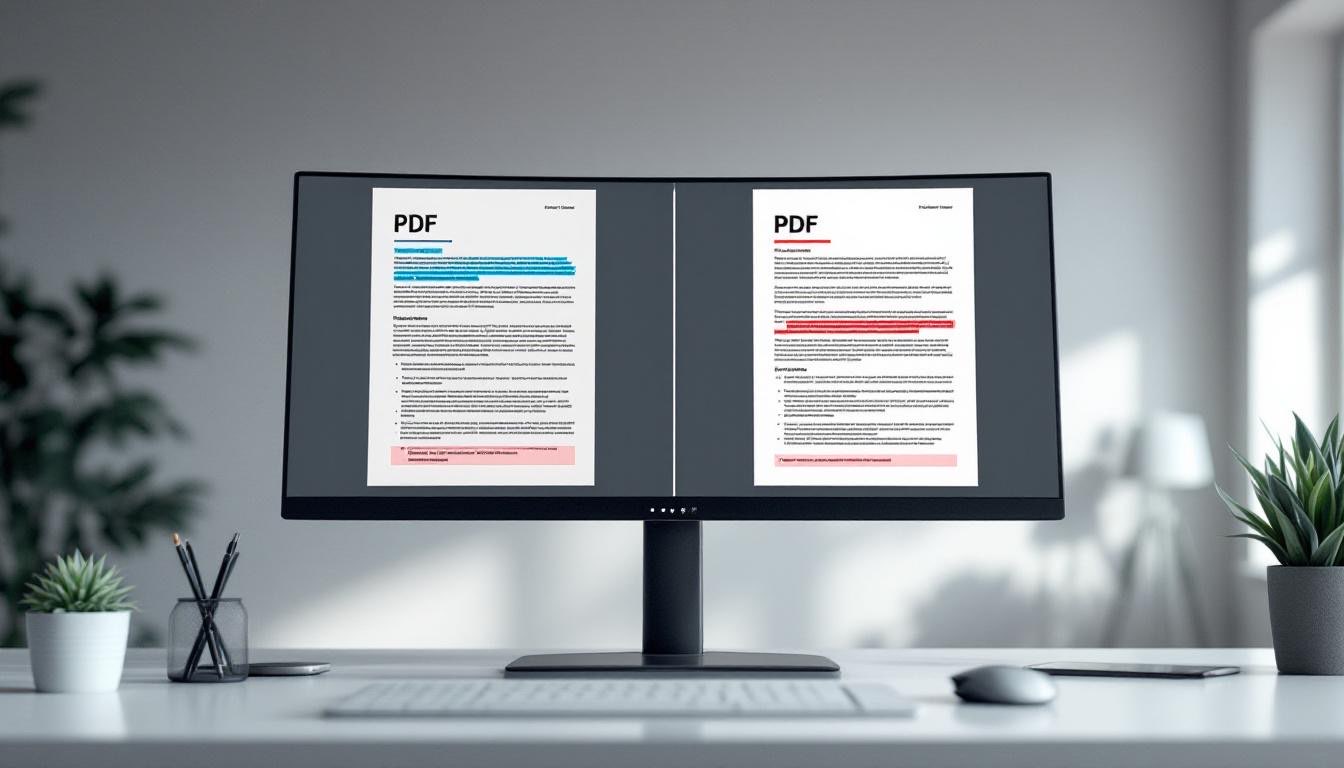
Scrolling through two PDFs side by side can be slow and error-prone. PDFGem's Compare PDFs tool renders both documents in your browser and marks pixels whose RGB difference exceeds its comparison threshold.
Why comparing PDFs matters more than you think
The implementation renders every page at 1.5× scale, aligns page N with page N, and compares the RGB channels of corresponding pixels. A pixel is marked when |R1−R2| + |G1−G2| + |B1−B2| > 30.
Manual review may miss subtle visual changes such as a swapped font, a moved logo, or an adjusted margin. Pixel comparison can help triage pages, but it cannot explain the meaning of a change or replace a careful review.
The displayed percentage is the number of marked pixels divided by the canvas pixel count, rounded to two decimal places. If at least one pixel is marked, the minimum displayed result is 0.01%. A page present in only one PDF is displayed as 100% different.
Three view modes for different comparison needs
PDFGem's Compare PDFs tool gives you three ways to examine the differences between two documents. Each mode serves a different purpose.
Side by Side displays both pages next to each other at the same zoom level. Scroll them together to spot structural changes — different headings, added paragraphs, moved images. This mode works well for initial review when you want a broad sense of what changed.
Overlay blends the two rendered pages. Areas that render alike overlap, while visual differences may appear ghosted or doubled. This view can help inspect layout shifts, alignment changes, and spacing adjustments.
Differences mode marks in red the rendered pixels that exceeded the threshold. It shows where pixel values diverged; it does not identify the underlying text edit or its significance.
Each page also displays a pixel-difference percentage, which helps prioritize pages for review. The number is a rendered-pixel measurement, not a percentage of changed words or meaning.
How to compare two PDFs with PDFGem
- Open the Compare PDFs tool — works on any device with a modern browser. No download, no plugin, no account.
- Select both PDF files — drag and drop or click to choose them. Processing stays in the browser.
- Choose a view mode — Side by Side, Overlay, or Differences. Switch between modes at any time.
- Review the results page by page — a 0% result means no rendered pixel exceeded the threshold. It does not establish that the PDF files are identical.
The comparison runs locally in your browser. Processing time depends on page count, page dimensions, PDF complexity, available memory, and the device.
Who needs to compare PDFs — and when
Teams reviewing contract revisions. Visual comparison can flag pages whose rendering changed, including changes absent from redline markup. It is not a legal review or proof of unchanged terms; inspect the marked pages and use a text-aware comparison when wording matters.
Designers verifying print proofs. A client approves a brochure layout, but the print vendor's pre-press team makes adjustments for bleed and trim. Overlay comparison reveals whether those adjustments affected the design — shifted images, altered colors, cropped text. Catching these issues before printing saves the cost of a reprint run.
Students and researchers checking paper revisions. Comparing the original and revised renderings can direct attention to pages that look different, but the result does not confirm that suggestions were addressed semantically.
Compliance teams reviewing policy updates. Comparing old and new renderings can support page-level triage. The marked pages still require human review and, when wording matters, a text-aware tool.
Anyone reviewing "final" versions. The word "final" on a filename does not guarantee that nothing changed. A visual comparison is one useful check, not a guarantee.
Visual comparison vs. text-based diff: understanding the difference
Text-based diff tools (like those in Word's Track Changes or Git) extract the raw text from both documents and compare strings character by character. They excel at finding word-level changes but are blind to formatting, layout, images, and design elements.
Visual comparison renders each page as an image and compares corresponding RGB pixels. It can surface rendering changes above the threshold, but it treats meaningful edits and benign rendering variations alike.
Visual and text comparison answer different questions. This tool does not compare text strings, semantics, metadata, signatures, or internal PDF structure. For a word-by-word check, extract text with PDF to Text and use a text-diff tool; use specialized tools for metadata, signatures, or forensic checks.
Tips for getting the best comparison results
- Compare matching page layouts. Different page sizes or orientations can create broad pixel differences unrelated to the content you intended to review.
- Use Differences mode first. Start with Differences mode to quickly identify which pages changed. Then switch to Side by Side or Overlay for those specific pages to understand what the changes are.
- Check the percentage per page. Use it to prioritize review, remembering that 0% only means no rendered pixel crossed the threshold.
- For large documents, work in sections. If your PDFs are 100+ pages, consider using Split PDF to break them into smaller chunks, then compare each section. This makes the review more manageable and runs faster in your browser.
- Export pages for documentation. If you need a record of the differences, use PDF to PNG to capture specific pages as images, then annotate or share them with your team.
Limitations to keep in mind
PDFGem's comparison is visual, not semantic. It detects that something changed on a page, but it does not tell you "the word 'shall' was changed to 'may' on line 14." For that level of detail, you need a text-based diff tool or manual review of the flagged pages.
Minor rendering differences, anti-aliasing, transparency, color management, or fractional pixel shifts may affect the result. Do not assume that a small or large percentage maps directly to the importance of a document change.
The tool aligns by page number, not by document structure. Page N is compared with page N, and a page that exists in only one PDF is shown as 100% different. Inserted pages can therefore shift all later comparisons.
Privacy: your documents stay on your device
Contract drafts, legal agreements, financial statements, medical records — the documents most often compared are also the most sensitive. Most online comparison tools upload both files to remote servers for processing.
PDFGem processes the comparison locally in your browser. Your PDFs are rendered and compared on your device rather than sent to a comparison server.
Ready to compare? Open the Compare PDFs tool, select two documents, and review the pages whose rendered pixels are marked.
Frequently Asked Questions
How does PDFGem compare two PDFs?
It renders each page at 1.5×, aligns page N with page N and compares RGB pixels. A pixel is marked when the sum of its RGB channel differences is greater than 30. The page percentage is rounded to two decimals, with a minimum of 0.01% when at least one pixel is marked.
Does this tool compare the text inside the PDFs?
No. It does not compare text strings, meaning, metadata, signatures or internal PDF structure. It compares only the rendered page images, so review every marked page yourself.
Are my PDFs uploaded to a server?
No. The comparison runs in your browser and the selected files are not uploaded to PDFGem servers.
What happens if the two PDFs have different page counts?
Page N is compared with page N. A page that exists in only one document is shown as 100% different.
Can I compare a PDF against a Word or image file?
The Compare PDFs tool accepts only PDF files. If you need to compare a Word document against a PDF, convert the Word file to PDF first using the Word to PDF tool, then compare the two PDFs.
What does 0% difference mean?
It means no rendered pixel exceeded the comparison threshold on that page. It does not prove that the PDF files are identical. Review pages marked with differences and use specialized tools for text, metadata, signatures or forensic checks.