
Compare Two PDF Files Side by Side and Highlight Every Text Difference — Free 2026 Guide
A vendor sends back a "final" contract, but you are not sure the terms match what you agreed on last week. A designer delivers a revised brochure, and you need to confirm only the requested changes were made. A colleague updates a compliance policy, and the legal team needs to verify nothing was altered beyond the approved edits.
Scrolling through two PDFs side by side and squinting at differences is slow, error-prone, and impractical for anything longer than a page or two. PDFGem's Compare PDFs tool renders both documents and highlights every visual difference — pixel by pixel — directly in your browser. No file uploads, no account, no limits.
Why comparing PDFs matters more than you think
PDF is the default format for contracts, proposals, invoices, regulatory filings, and design proofs. According to industry research, roughly 9% of business contracts experience a significant claim or dispute — and many of those disputes stem from ambiguity or undetected changes between document versions.
Manual review catches obvious edits — a different dollar amount, a missing paragraph. But it reliably misses subtle changes: a swapped font that shifts line breaks, a moved logo, an adjusted margin that pushes a clause to a different page, or a single word change buried in page 47 of a 60-page agreement.
Automated visual comparison eliminates that risk. The tool checks every pixel on every page and tells you exactly what changed and where.
Three view modes for different comparison needs
PDFGem's Compare PDFs tool gives you three ways to examine the differences between two documents. Each mode serves a different purpose.
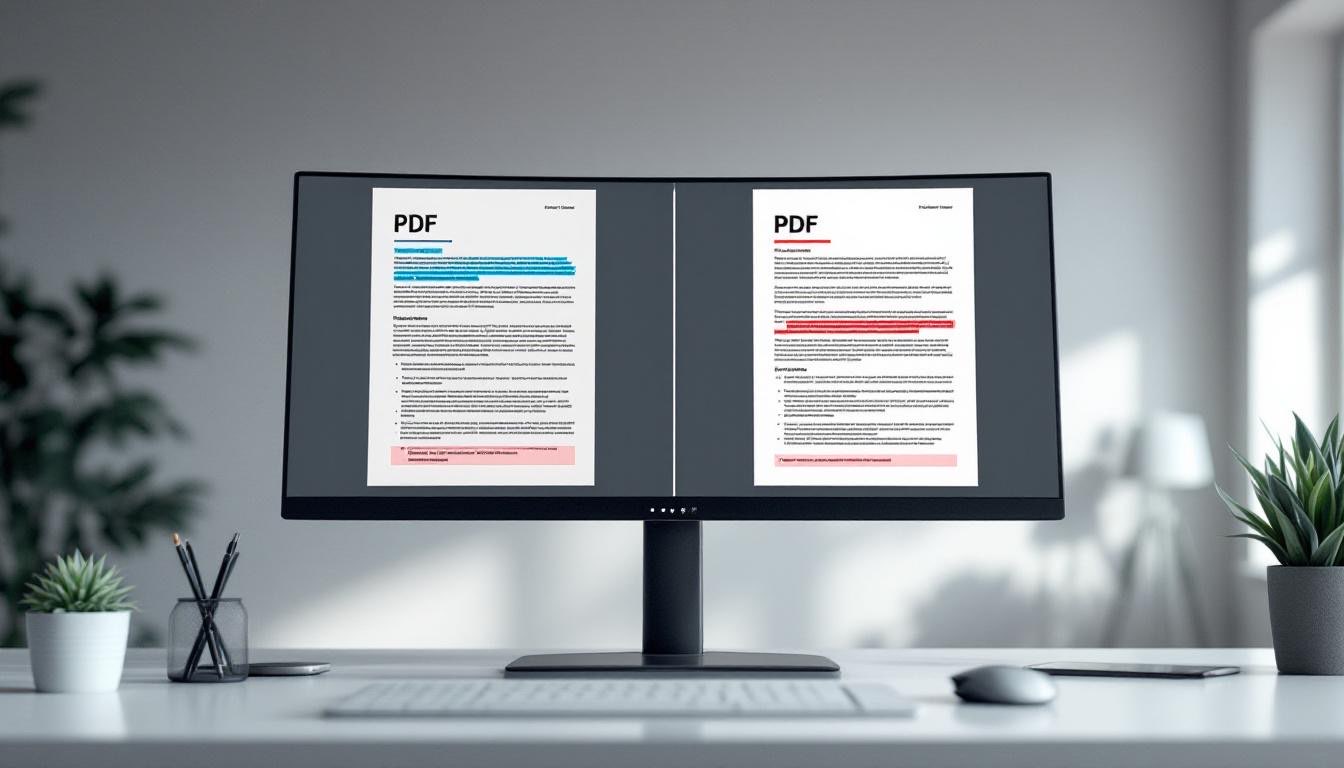
Side by Side displays both pages next to each other at the same zoom level. Scroll them together to spot structural changes — different headings, added paragraphs, moved images. This mode works well for initial review when you want a broad sense of what changed.
Overlay blends the two pages on top of each other. Identical content appears normal, while differences show as ghosted or doubled elements. This is particularly effective for catching layout shifts, alignment changes, and spacing adjustments that are invisible in side-by-side mode. Architects and designers use overlay comparison to verify that only the intended edits were made to technical drawings and proofs.
Differences mode highlights only the pixels that changed between the two documents. Unchanged areas appear clean, and every modification stands out in red. This is the fastest mode for a quick answer to "did anything change on this page?" — especially useful for long documents where most pages should be identical.
Each page also displays a percentage difference metric, so you can immediately see which pages had the most changes and which are untouched. A 60-page contract where only pages 12, 34, and 58 show differences? You know exactly where to focus your review.
How to compare two PDFs with PDFGem
- Open the Compare PDFs tool — works on any device with a modern browser. No download, no plugin, no account.
- Upload both PDF files — drag and drop or click to select. The first file is treated as the "original" and the second as the "revised" version.
- Choose a view mode — Side by Side, Overlay, or Differences. Switch between modes at any time.
- Review the results page by page — each page shows a difference percentage. Pages with 0% difference are identical. Focus your attention on pages with the highest percentages.
The entire comparison runs locally in your browser using advanced web technologies. Your documents are never uploaded to any server. A 60-page contract comparison typically completes in a few seconds, depending on your device.
Who needs to compare PDFs — and when
Lawyers reviewing contract revisions. When opposing counsel sends back a "clean" version of a contract, visual comparison catches every modification — including changes that were not flagged in redline markup. A single moved comma or a changed "shall" to "may" can alter the legal meaning of a clause. According to legal document management best practices, automated comparison is now standard practice in contract review because it eliminates the risk of overlooking changes.
Designers verifying print proofs. A client approves a brochure layout, but the print vendor's pre-press team makes adjustments for bleed and trim. Overlay comparison reveals whether those adjustments affected the design — shifted images, altered colors, cropped text. Catching these issues before printing saves the cost of a reprint run.
Students and researchers checking paper revisions. Professors return graded papers with suggested changes. Comparing the original submission against the revised version confirms every suggestion was addressed. In academic publishing, comparing the submitted manuscript against the accepted version verifies that journal editors did not introduce unintended edits.
Compliance teams auditing policy updates. Regulatory changes require policy document updates. Comparing the old policy against the new version ensures only the approved sections were modified — and that no existing approved language was accidentally removed or altered.
Anyone reviewing "final" versions. The word "final" on a filename does not guarantee nothing changed. Running a quick visual comparison takes seconds and provides certainty.
Visual comparison vs. text-based diff: understanding the difference
Text-based diff tools (like those in Word's Track Changes or Git) extract the raw text from both documents and compare strings character by character. They excel at finding word-level changes but are blind to formatting, layout, images, and design elements.
Visual (pixel-based) comparison renders each page as an image and compares every pixel. This catches everything visible on the page — text changes, font swaps, color adjustments, moved images, spacing differences, watermark additions, and layout shifts. The tradeoff is that it treats any visual difference equally, whether it is a meaningful text edit or a benign rendering variation.
For most practical use cases — contract review, design proofing, compliance audits — visual comparison is the more reliable approach because it catches changes that text-based tools miss entirely. If you specifically need a word-by-word text diff, extract the text first using PDF to Text, then compare the plain text files.
Tips for getting the best comparison results
- Compare same-version documents. Both PDFs should have the same page size and orientation. Comparing a letter-size PDF against an A4 version of the same document will show differences on every page due to the different dimensions.
- Use Differences mode first. Start with Differences mode to quickly identify which pages changed. Then switch to Side by Side or Overlay for those specific pages to understand what the changes are.
- Check the percentage per page. Pages showing 0% difference are confirmed identical. Focus your manual review on pages with the highest percentage change.
- For large documents, work in sections. If your PDFs are 100+ pages, consider using Split PDF to break them into smaller chunks, then compare each section. This makes the review more manageable and runs faster in your browser.
- Export pages for documentation. If you need a record of the differences, use PDF to PNG to capture specific pages as images, then annotate or share them with your team.
Limitations to keep in mind
PDFGem's comparison is visual, not semantic. It detects that something changed on a page, but it does not tell you "the word 'shall' was changed to 'may' on line 14." For that level of detail, you need a text-based diff tool or manual review of the flagged pages.
Minor rendering differences between PDF versions — slightly different anti-aliasing, fractional pixel shifts in text rendering — can appear as small differences. In practice, these are easy to distinguish from real content changes because they show up as faint noise in Differences mode, while actual edits produce bold, clear highlights.
The tool works best when both documents have the same page count and dimensions. Comparing a 10-page document against a 12-page version that added two new pages will correctly compare the first 10 pages, but it cannot automatically determine that pages 5 and 6 are "new" inserts.
Privacy: your documents stay on your device
Contract drafts, legal agreements, financial statements, medical records — the documents most often compared are also the most sensitive. Most online comparison tools upload both files to remote servers for processing.
PDFGem processes everything locally. The Compare PDFs tool runs entirely in your browser using advanced web technologies. Your PDFs are rendered and compared on your own device. Nothing is transmitted over the network. There is no account to create, no file history stored anywhere, and no daily comparison limit.
Ready to compare? Open the Compare PDFs tool, upload your two documents, and see every difference highlighted in seconds. Free, private, no limits.