
Best Free PDF Tools Online: 28 Tools With No Limits
PDFs are everywhere — invoices, contracts, resumes, reports, presentations. If you work with documents at all, you handle PDFs regularly. And at some point, you need to do more than just read them.
PDFGem gives you 28 free PDF tools that cover everything from merging and splitting to converting, signing, compressing, and protecting. Most run entirely in your browser, so your files never leave your device. No account. No daily limits. No "upgrade to premium" walls.
What to Look for in Free PDF Tools
Not all free PDF tools are actually free. Many cap you at 1-3 operations per day, lock features behind paid plans, or require an account before you can even start. Here is what genuinely matters when choosing a tool:
- No daily limits — Process 1 file or 50. The tool should work the same way every time.
- No forced account — If you need to create an account just to merge two PDFs, the tool is optimizing for its business, not for you.
- Privacy by design — Browser-based processing means your files never travel to a remote server. That is not a nice-to-have; it is the baseline for handling sensitive documents.
- No watermarks — Some tools stamp their logo on your output unless you pay. That defeats the purpose of a free tool.
- Speed — Local processing is nearly instant. Server-based tools should still complete in under 15 seconds for typical files.
PDFGem's 28 Tools by Category
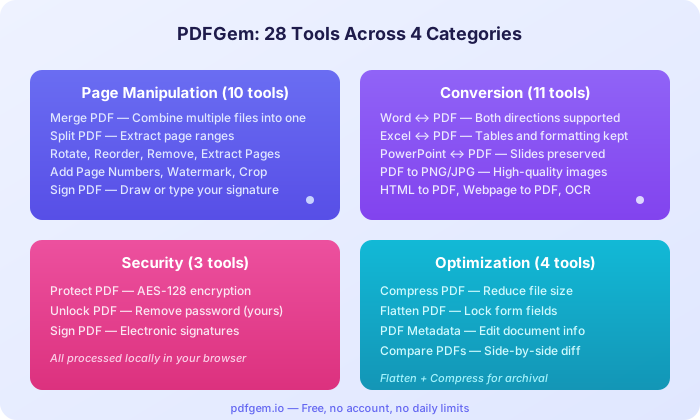
Page Manipulation (10 tools)
These tools let you reorganize PDF pages without opening a desktop editor:
- Merge PDF — Combine multiple PDFs into a single file. Drag to reorder before merging.
- Split PDF — Extract specific page ranges or split a document into individual pages.
- Rotate PDF — Fix sideways or upside-down pages. Rotate individual pages or the entire document.
- Reorder Pages — Drag pages into the exact sequence you need.
- Remove Pages — Delete unwanted pages (blank pages, cover sheets you do not need).
- Extract Pages — Pull specific pages out of a larger document.
- Add Page Numbers — Choose position, format, and starting number.
- Add Watermark — Stamp text across all pages with custom opacity and position.
- Sign PDF — Draw, type, or upload your signature and place it on any page.
- Crop PDF — Trim page margins to remove whitespace or resize for printing.
Conversion (11 tools)
Move between PDF and other formats in both directions:
- PDF to Word — Convert any PDF to an editable .docx document.
- Word to PDF — Convert .docx files to PDF with Quick (local) or Full (server) mode.
- PDF to Excel — Extract tables from PDFs into editable spreadsheets.
- Excel to PDF — Convert spreadsheets with table formatting preserved.
- PDF to PowerPoint — Turn PDF pages into editable PPTX slides.
- PowerPoint to PDF — Convert presentations to PDF with slide layouts intact.
- PDF to PNG/JPG — Convert pages to high-quality images at custom DPI.
- PDF to Text — Extract all text content from a PDF.
- OCR PDF — Extract text from scanned documents using optical character recognition.
- Extract Images — Pull embedded photos and graphics at their original resolution.
- HTML/Webpage to PDF — Convert web pages or HTML code to PDF documents.
Security (3 tools)
- Protect PDF — Add AES-128 encryption with a password. Done entirely in your browser.
- Unlock PDF — Remove password protection from a PDF you own (you need to enter the password).
- Sign PDF — Add electronic signatures to contracts, forms, or agreements.
Optimization (4 tools)
- Compress PDF — Reduce file size for email attachments. A 15 MB report can often shrink to 2-3 MB.
- Flatten PDF — Lock form fields and annotations so they cannot be edited.
- PDF Metadata — View and edit title, author, and other document properties.
- Compare PDFs — Side-by-side visual comparison to spot differences between two versions.
The 6 Most Useful PDF Tools (and When You Need Them)
If you are new to PDFGem, these are the tools most people reach for first:
- Merge PDF — Assembling application packets, combining scanned pages, or creating a single report from multiple source files. Used by students, accountants, lawyers, and anyone who emails multi-page documents.
- Compress PDF — When a file exceeds your email provider's 25 MB attachment limit or you need to upload to a portal with size restrictions. PDFGem's compression typically reduces image-heavy PDFs by 60-80%.
- Sign PDF — Signing contracts, lease agreements, tax forms, or school permission slips without printing, signing by hand, and scanning back. Draw your signature with a mouse or finger, or type it.
- PDF to Word — When you receive a PDF but need to edit the content. The server-side conversion preserves tables, formatting, and layout structure.
- OCR PDF — Got a scanned document where you cannot select or search the text? OCR reads the image and produces selectable, searchable text. Supports 16 languages.
- Protect PDF — Before emailing sensitive documents (financial statements, medical records, legal contracts), add a password. The encryption happens locally — neither the file nor the password touches a server.
Privacy: Client-Side vs Server-Side Processing
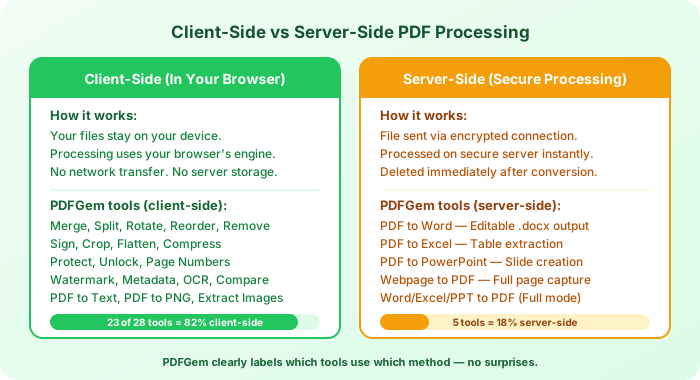
Privacy is not a marketing checkbox — it is an architectural decision. PDFGem processes 23 of its 28 tools entirely in your browser. Your files are read by code running in your browser tab, processed in your device's memory, and the output is downloaded directly. Nothing crosses the network.
The 5 tools that require server processing — PDF to Word, PDF to Excel, PDF to PowerPoint, Webpage to PDF, and the Full-mode option for document-to-PDF conversions — need a rendering engine that browsers cannot provide natively. For these tools, files are sent over an encrypted connection, processed immediately, and deleted from the server right after conversion. No copies are retained.
PDFGem clearly labels which tools process locally and which use server-side conversion, so you always know exactly what happens to your file before you use a tool.
What Makes a Genuinely Free PDF Tool
The word "free" gets stretched a lot online. A tool that lets you merge two PDFs and then asks for $9.99/month to merge a third one is not free — it is a trial. Here is how PDFGem approaches it differently:
- No hidden tiers — Every tool works the same way whether it is your first use or your thousandth.
- No account required — Open the tool, use it, close the tab. PDFGem does not track what you do or ask for your email.
- No watermarks — The output file is clean. No logos, no "created with" banners.
- No file-count limits — Merge 3 files or 30. Compress one PDF or compress every PDF in your downloads folder. The tool does not count.
- Sustained by donations — PDFGem stays free through voluntary contributions from users who find it useful. If the tools save you time, consider supporting the project.
Quick Reference: All 28 Tools
| Category | Tool | Processing |
|---|---|---|
| Page | Merge PDF | Browser |
| Page | Split PDF | Browser |
| Page | Rotate PDF | Browser |
| Page | Reorder Pages | Browser |
| Page | Remove Pages | Browser |
| Page | Extract Pages | Browser |
| Page | Add Page Numbers | Browser |
| Page | Add Watermark | Browser |
| Page | Sign PDF | Browser |
| Page | Crop PDF | Browser |
| Convert | PDF to Word | Server |
| Convert | Word to PDF | Quick: Browser / Full: Server |
| Convert | PDF to Excel | Server |
| Convert | Excel to PDF | Quick: Browser / Full: Server |
| Convert | PDF to PowerPoint | Server |
| Convert | PowerPoint to PDF | Quick: Browser / Full: Server |
| Convert | PDF to PNG/JPG | Browser |
| Convert | PDF to Text | Browser |
| Convert | OCR PDF | Browser |
| Convert | Extract Images | Browser |
| Convert | HTML/Webpage to PDF | Quick: Browser / Full: Server |
| Security | Protect PDF | Browser |
| Security | Unlock PDF | Browser |
| Security | Sign PDF | Browser |
| Optimize | Compress PDF | Browser |
| Optimize | Flatten PDF | Browser |
| Optimize | PDF Metadata | Browser |
| Optimize | Compare PDFs | Browser |
Tips for Choosing the Right Tool
- Need to combine files? Start with Merge PDF. If pages are in the wrong order, use Reorder Pages first.
- File too large for email? Compress PDF handles image-heavy documents well. For text-heavy PDFs, compression gains are smaller since text already takes minimal space.
- Need to edit PDF content? Convert to Word first with PDF to Word, make your edits, then convert back.
- Scanned document with no selectable text? Use OCR PDF to make it searchable. Then extract text, copy paragraphs, or run Ctrl+F.
- Sending sensitive documents? Use Protect PDF to add a password before emailing. Share the password through a separate channel (text message, phone call).
- Archiving finalized documents? Flatten the PDF to lock all form fields and annotations, then compress to reduce storage size.
All 28 tools are available right now at pdfgem.io — open any tool and start working in seconds. No sign-up, no limits, no strings attached.